Best Portable Monitors (2026): USB‑C Travel Screens Worth Carrying
Here’s how to buy a portable monitor that is bright enough, sharp enough, stable over USB-C, and useful for real travel work.
Written by the SolderMag Editorial Team. We update recommendations against current product availability, disclose affiliate links, explain ranking criteria in our testing methodology, and correct material errors through the contact page.
As an Amazon Associate I earn from qualifying purchases. Product prices and availability can change.
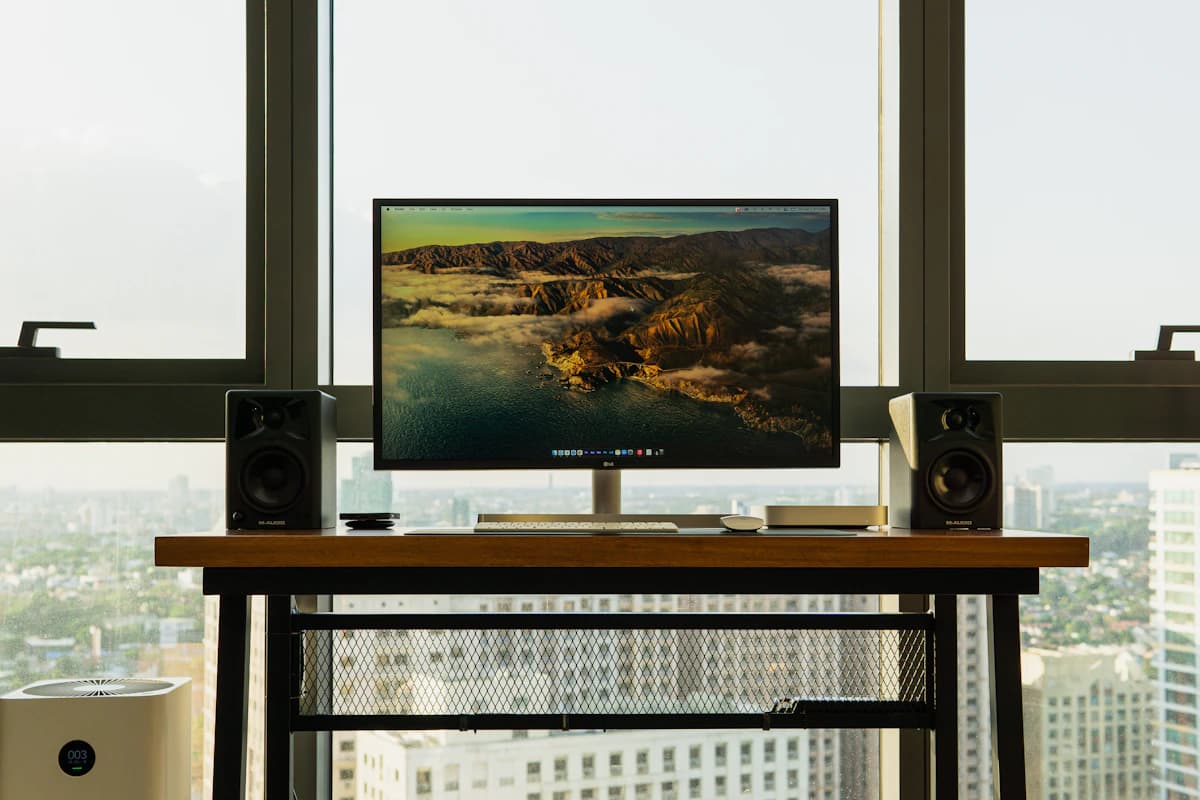
A portable monitor is the simplest upgrade for people who work on a laptop and hate feeling boxed in. If you are building a complete mobile dev setup, a second screen is one of the highest-impact additions.
But the category is full of traps: dim panels that look fine indoors and unusable near a window, USB‑C ports that don’t behave consistently, and “touchscreen” models that quietly require driver installs.
This is the buying guide for 2026: what to look for, what to avoid, and which portable monitors are worth carrying.
SolderMag Take: brightness is the real spec
Most portable monitor reviews obsess over resolution.
Resolution matters, but brightness decides whether you’ll actually use the thing.
If the panel is dim, you’ll stop carrying it.
Our recommendation order is brightness first, stand second, ports third, and resolution fourth. A bright 1080p panel with a stable stand is more useful on the road than a fragile 4K panel that needs a perfect angle, a second cable, and a dark room.
The three types of portable monitor
1) USB‑C single‑cable monitors (best for most people)
- one cable for power + display (make sure you use a quality USB-C cable that supports DisplayPort Alt Mode)
- clean setup
 Best overall
Lenovo ThinkVision M14t Gen 2
2) HDMI + USB powered (works with more devices)
- better compatibility with consoles/cameras
- slightly more cabling
3) Touchscreen models (only if you’re sure)
- can be great for specific workflows
- can be annoying if drivers are flaky
Which portable monitor should you buy?
Lenovo ThinkVision M14t Gen 2: best overall
The ThinkVision M14t Gen 2 is the safest recommendation for laptop workers because it combines a sharp 14-inch panel, useful touch support, strong color, and a stand design that feels intentional rather than improvised.
ViewSonic VG1655: best budget pick
The VG1655 is not glamorous, but it covers the basics: USB-C, a workable stand, and a price that makes sense if you only need a second screen occasionally.
espresso Display 15 Touch: best touchscreen
Buy this if touch and pen workflows are the point. Do not pay the premium if you only want more spreadsheet space.
ASUS ROG Strix XG17AHPE: best for gaming
This is the niche pick for Switch, handheld PC, and laptop gaming users who care about refresh rate. For office work, the money is better spent on brightness and ergonomics.
What size is best?
For most people, 14 to 16 inches is the usable range. Smaller panels feel cramped beside a modern laptop. Larger panels stop being portable and need more careful packing.
- 14-inch: best beside compact laptops, easier to carry.
- 15.6-inch: best all-round size for productivity.
- 17-inch: only worth it for gaming or semi-permanent hotel/desk setups.
If this is staying on your desk most of the time, skip the portable category and buy a proper 27-inch 4K monitor.
How to choose (fast checklist)
- Brightness: aim for “bright enough for daytime.”
- Panel type: IPS is the safe default.
- Size: 15.6" is the sweet spot for portability.
- Ports: USB‑C + mini‑HDMI is a good combo.
- Stand/case: you will hate it if it can’t stand up reliably.
If a monitor can’t stand at a comfortable angle, it’s not a tool. it’s a prop.
Portable monitor buying traps
Dim panels
Listings often bury brightness. If brightness is missing, assume it is mediocre.
USB-C confusion
USB-C is not automatically display output. Your laptop must support DisplayPort Alt Mode or Thunderbolt/USB4 video.
Bad covers pretending to be stands
Folio stands look clever until they slide on a cafe table. A stable kickstand is worth paying for.
4K on a tiny panel
4K portable monitors can look sharp, but they cost more, draw more power, and often create scaling quirks. For travel work, 1080p or 1440p is usually more practical.
What to avoid
- listings that don’t mention brightness at all
- no-name brands with no warranty/support
- “4K portable monitor” if you’re mostly doing docs/code (you’re paying for pixels you won’t notice)
Best use cases
- Remote work: prioritize stand, brightness, and USB-C stability.
- Coding while travelling: match the height with a laptop stand and use a reliable cable.
- Presentations: HDMI fallback matters because conference-room hardware is unpredictable.
- Gaming: refresh rate and HDMI input matter more than touch.
Common issues and fixes
“It doesn’t work over USB‑C”
Some laptops have USB‑C ports that don’t support display out.
Fix:
- check if your laptop supports DisplayPort Alt Mode
- use HDMI if needed
“It flickers or disconnects”
Often caused by:
- cheap cable
- insufficient power
Fix:
- use a reputable USB‑C cable
- power it from a charger, not the laptop, if it supports dual inputs
If you're comparing this against a permanent desk display, check our best 27-inch 4K monitors guide. And if your laptop only has one USB-C port, a USB-C hub can give you more room to work.
Sources
- Manufacturer specs (brightness, panel type)
- Independent reviews that test brightness and real-world use